CrystalDiskMark — Disk Speed Test Tool for SSD, HDD & NVMe
A downloadable tool for Windows
What Is CrystalDiskMark?
CrystalDiskMark is the most widely used disk benchmark tool for Windows. It measures the read and write speed of your storage drives — SSD, HDD, and NVMe — using standardized test patterns that reflect both sequential throughput and random access performance. Whether you want to verify your new NVMe drive is performing at spec, diagnose a slow system, or compare storage options before buying — a disk speed test gives you the numbers you need. This page provides the official download along with a complete guide to understanding your results.
How to Run a Disk Speed Test
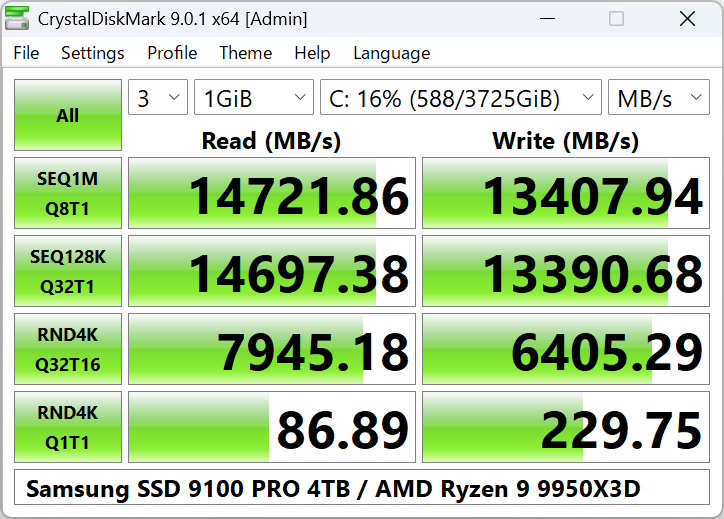
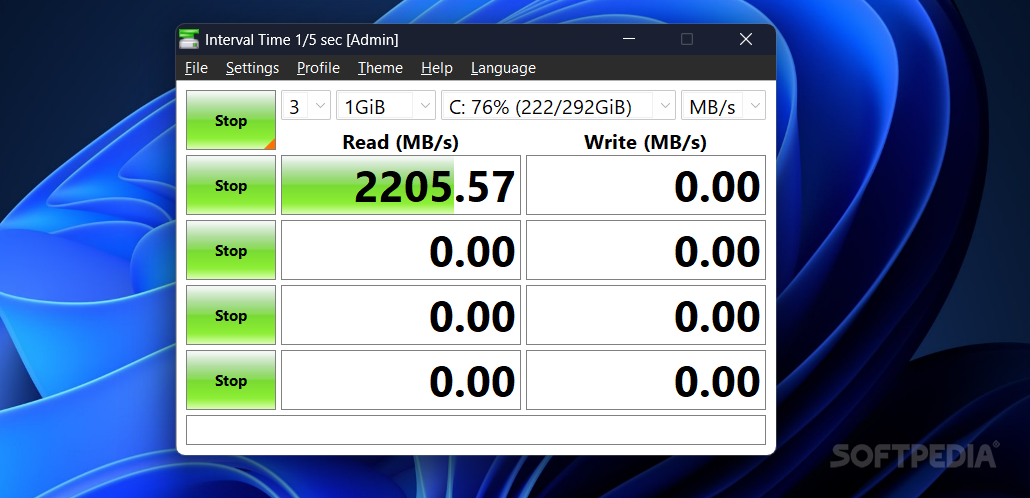
Running a benchmark takes under two minutes: 1. Download and launch the tool 2. Select the target drive from the dropdown menu 3. Choose the test size (1 GiB is recommended for most users) 4. Click "All" to run the full benchmark suite 5. Read your sequential and random read/write results Results are displayed in MB/s. Higher is better. Sequential read speed matters most for large file transfers; random 4K speed reflects everyday system responsiveness.
How to Check Hard Drive Health
Disk speed alone doesn't tell the full story. A drive can show normal benchmark numbers while silently developing bad sectors. To check hard drive health properly, you need to look at SMART data — Self-Monitoring, Analysis and Reporting Technology built into every modern drive. Key SMART indicators to watch: - Reallocated Sectors Count — any value above 0 is a warning sign - Current Pending Sectors — sectors the drive couldn't read correctly - Uncorrectable Sector Count — permanent data loss risk - Temperature — consistently above 50°C shortens drive lifespan Use CrystalDiskInfo alongside this benchmark tool to get a complete picture of your drive's health status.
Understanding Your Results: SSD vs HDD vs NVMe
Not sure if your speeds are normal? Here are typical reference values: SATA SSD: - Sequential Read: 450–560 MB/s - Sequential Write: 400–520 MB/s - Random 4K Read: 40–90 MB/s NVMe SSD (Gen 3): - Sequential Read: 2,000–3,500 MB/s - Sequential Write: 1,500–3,000 MB/s - Random 4K Read: 300–700 MB/s NVMe SSD (Gen 4): - Sequential Read: 4,000–7,000 MB/s - Sequential Write: 3,500–6,500 MB/s HDD (7200 RPM): - Sequential Read: 80–160 MB/s - Sequential Write: 80–140 MB/s - Random 4K Read: 0.5–2 MB/s If your SSD results are significantly below these ranges, check: thermal throttling, drive firmware, SATA vs NVMe connection, or TLC cache exhaustion on budget drives.
SSD Speed Test: What the Numbers Mean
CrystalDiskMark runs several test profiles. Here's what each one measures: SEQ1M Q8T1 — Sequential 1MB blocks, 8 queue depth, 1 thread. This is your drive's rated "headline" speed. Closest to large file copy performance. SEQ128K Q32T1 — 128KB blocks at high queue depth. Reflects NAS and workstation workloads. RND4K Q32T16 — Random 4KB at 32 queue depth, 16 threads. Server-style workload. Most important for database and virtualization performance. RND4K Q1T1 — Single-threaded random 4K. This is the most important number for everyday desktop use. A slow result here means a slow-feeling system even if sequential speeds look fine.
How to Clone HDD to SSD
Upgrading from HDD to SSD is the single biggest performance improvement most users can make. After cloning, run a disk speed test to confirm your new drive is performing correctly. Basic cloning process: 1. Connect new SSD via USB enclosure or second SATA port 2. Use free cloning software (Macrium Reflect Free, Clonezilla) 3. Clone the partition layout and data 4. Swap drives and boot from the SSD 5. Run a benchmark to verify speed matches spec
Frequently Asked Questions
How long does a disk speed test take? With the default 1 GiB test size, a full benchmark completes in 2–5 minutes. Each of the 5 test types runs twice (read and write), so total time depends on your drive speed. Does running a benchmark damage my SSD? No. Modern SSDs handle billions of write cycles before wear becomes an issue. A benchmark writes a small amount of data to a test area and does not accelerate drive aging in any meaningful way. What is a good disk speed for gaming? For gaming, random 4K read speed matters more than sequential. Any modern SSD with 40+ MB/s random 4K read speed will load games faster than a 7200 RPM HDD. NVMe drives with DirectStorage support offer additional benefits in newer titles. Is this tool safe to download? Yes. CrystalDiskMark is open-source software developed by Noriyuki Miyazaki (hiyohiyo) and has been publicly audited. It does not modify your drives — it only performs read/write tests in a temporary test file that is deleted after the benchmark.
System Requirements
- OS: Windows 11, Windows 10, Windows 8.1, Windows 7 - Architecture: x64, x86, ARM64 - RAM: 512 MB minimum - Storage: 5 MB install size - Admin rights required for SMART data access Download the tool above, run your benchmark, and check the dev logs below for detailed guides on interpreting results and optimizing your storage setup.
Download
Also available on

Development log
- Why Disk Speed Testing Matters More Than You Think57 days ago
- CrystalDiskMark — Free Disk Speed Test for Windows82 days ago
- NVMe vs SATA SSD: Speed Benchmark Comparison and What It Means for You88 days ago
- How to Clone HDD to SSD: Step-by-Step Guide for Windows88 days ago
- SSD Speed Test Results Explained: Sequential vs Random, Read vs Write88 days ago
- How to Check Hard Drive Health on Windows 10 and 1188 days ago
- NVMe vs SSD Speed Test – Real Performance Comparison88 days ago
Leave a comment
Log in with itch.io to leave a comment.